Print price and sale tags
Before you start
- A saved design at your tag's size. See Create a label design.
- Prices set on your products in Shopify. For sale items, a Compare-at price higher than the price.
Add the price
- Open the design and choose Add object, then Text.
- Click inside the text box, choose Formula and pick $MONEY().
- With the cursor between the brackets, type @ and choose Variant.Price.
- Under Style, set a larger Font size (if Size range is ticked, raise its Max too) and choose bold in Font style.
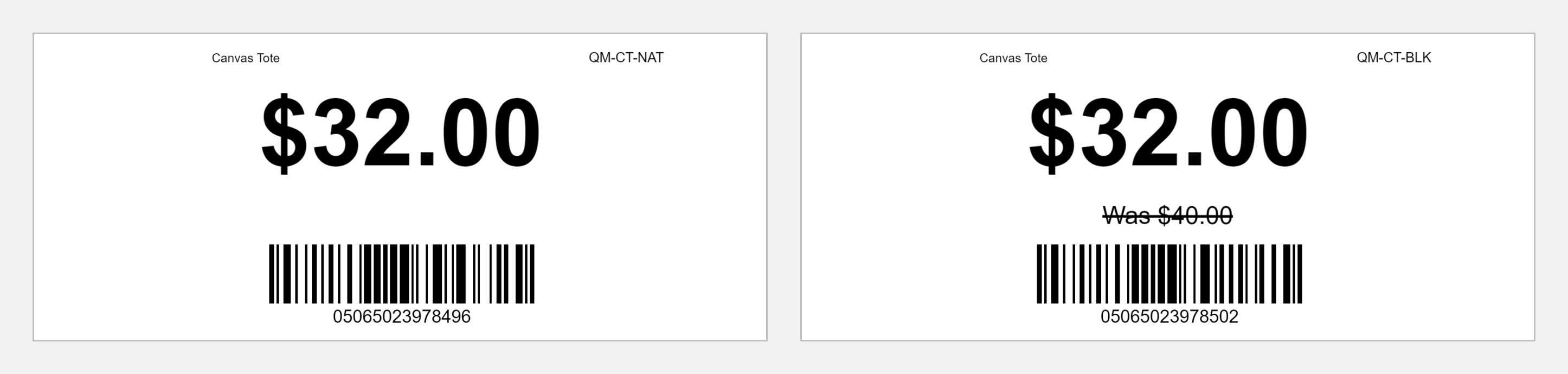
The tag now shows the price with a dollar sign, for example $32.00.
Add the "Was" price for sale items
- Choose Add object, then Text.
- Click inside the new text box and type Was followed by a space.
- Choose Formula, pick $MONEY(), then type @ between the brackets and choose Variant.CompareAtPrice.
- Tick Hide when empty.
- Under Style, in Font style, choose strikethrough (the third button).
- In the Variant panel, check one product that is on sale and one that is not.
- Choose Save in the Unsaved changes bar.
What happens
Products with a compare-at price print the struck-through "Was" price above or below the price. Products without one print only the price, because Hide when empty removes the whole "Was" line.
If something goes wrong
- The price prints without a dollar sign, such as 2629.95: the plain Variant.Price field prints the bare number. Put it inside $MONEY(), which adds the sign and the thousands comma.
- A red message says the formula "cannot be evaluated": the field name was typed by hand. Delete it, type @ and choose the field from the list.
- "Was" prints on products that are not on sale: tick Hide when empty on the "Was" text.
- You sell in a currency other than dollars: $MONEY() prints a dollar sign. Type your currency symbol in the text box instead, then insert @Variant.Price after it. The price then prints without a thousands comma.
Related articles
- Print barcode labels for your products and variants
- Find your label sheet or roll (Avery, Online Labels, Dymo, Uline)
- Fix common printing problems
Updated on: 05/11/2026
Thank you!