Adding and formatting text
Add a text box
- Open your design in the editor.
- Add a Text object from the toolbar.
- Double-click or use the sidebar to edit the content.
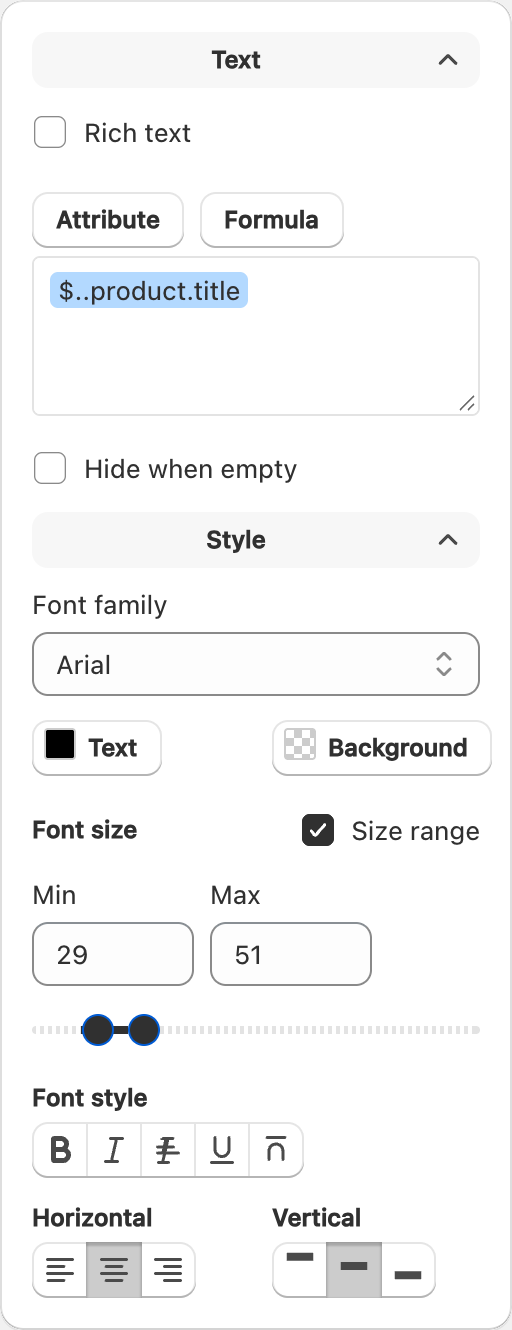
Font, size, and style
In the sidebar you can typically change:
- Font family
- Font size
- Bold, italic, and other style toggles
- Text color
- Shadow (when you want depth behind the text)
Rich text (mixed formatting)
Some text boxes support rich text, so part of a line can be bold or a different size while the rest stays normal. Select the characters you want to change before applying a style.
Product data inside text
You can insert product fields (title, price, SKU, and more) into text. See Showing product data on labels.
When a field is empty for a product, that part of the text can appear blank on the printed label — that is expected when the data is missing.
Tips for readable labels
- Keep body text large enough for the physical label size.
- Prefer high contrast (dark text on a light label).
- Check the preview with a real variant before a large print run.
Related articles
Updated on: 09/10/2026
Thank you!