Adding barcodes
Add a barcode
- Open your design in the editor.
- Add a Barcode object.
- Select it to open barcode settings in the sidebar.
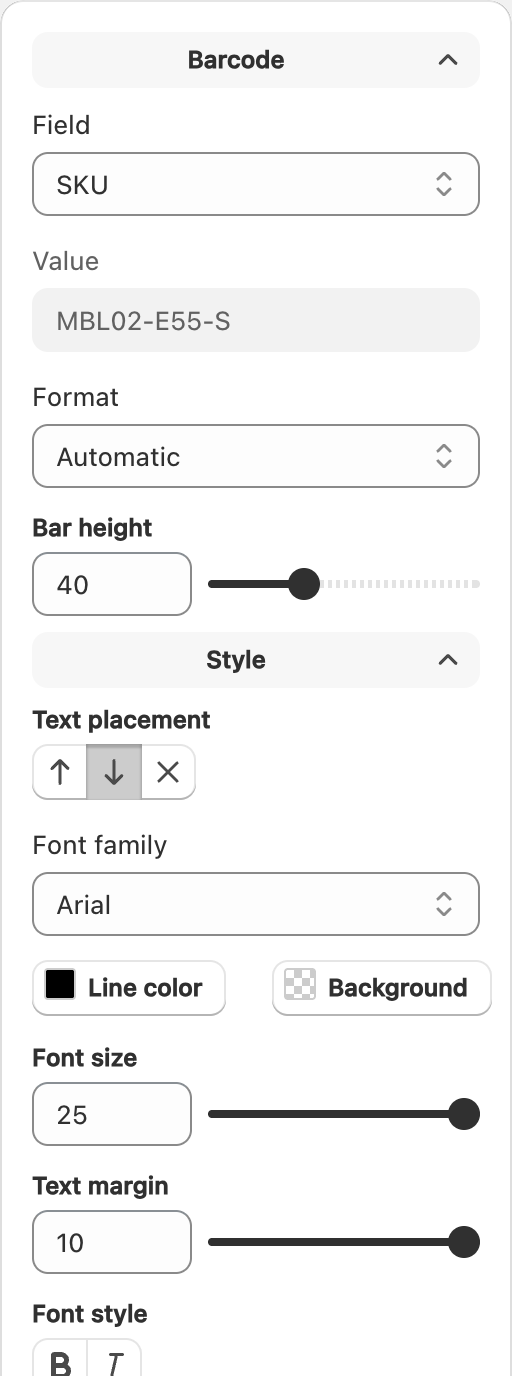
Supported formats
Label Wizard barcode formats include:
- Automatic — picks a format from the data when possible
- EAN-13
- UPC
- GTIN-14
- GS1-128
- Code 128
Choose the format your retailers or scanners expect. If you are unsure, start with Automatic and verify with a scanner.
Link to product data
Common field presets:
- Barcode — the product/variant barcode from Shopify
- SKU — the variant SKU
- Static text — a fixed value you type
You can also use expressions for more advanced cases. See Formulas and advanced fields.
Size the barcode to scan
- Keep quiet space (clear margin) around the bars.
- Avoid shrinking barcodes until the bars blur at print DPI.
- Prefer printing barcodes at 203 DPI on thermal printers or 300 DPI on laser, then test with your scanner.
See Getting the best print quality.
Related articles
Updated on: 09/10/2026
Thank you!