Flex regions: content that adjusts to fit
What a flex region is
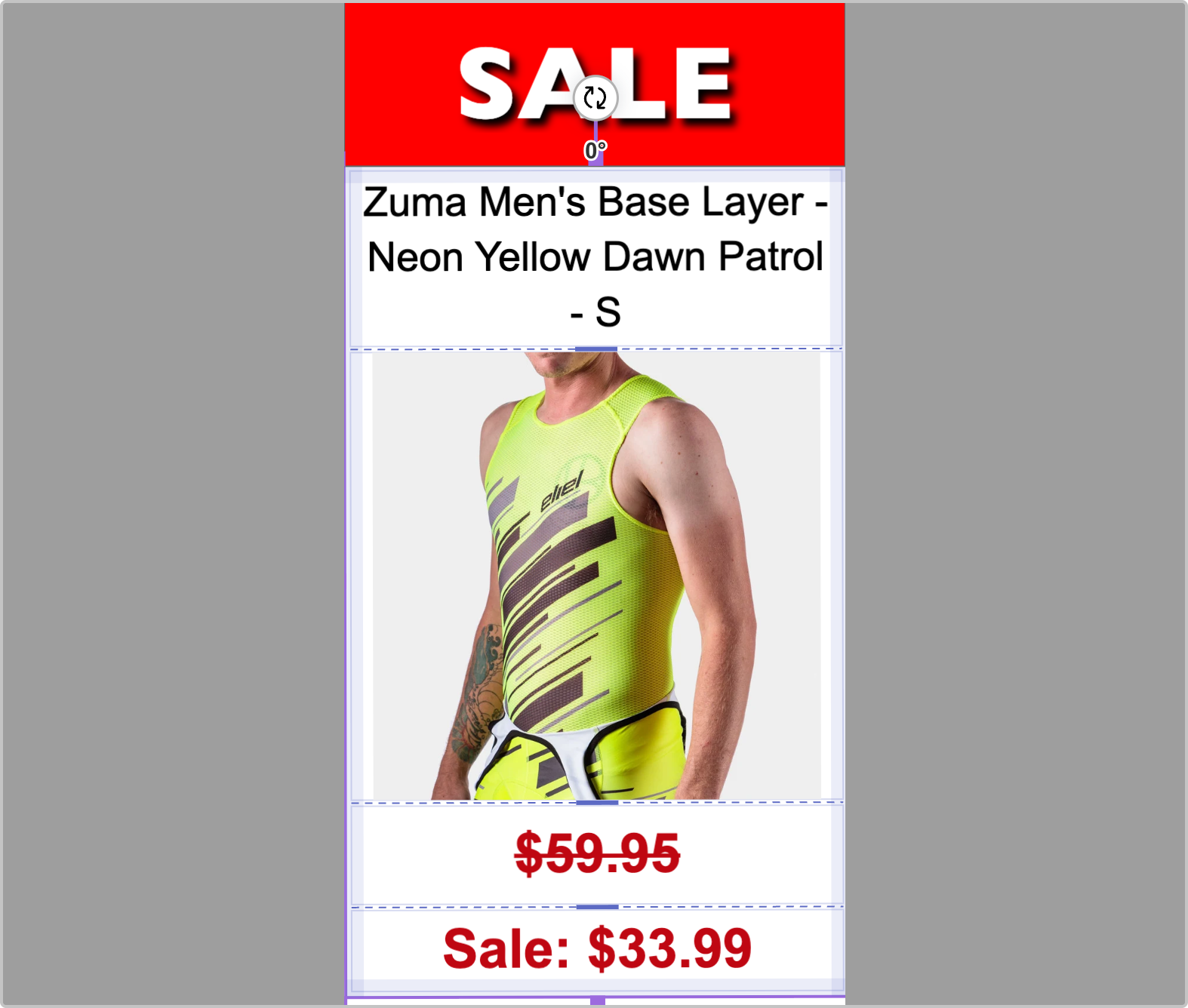
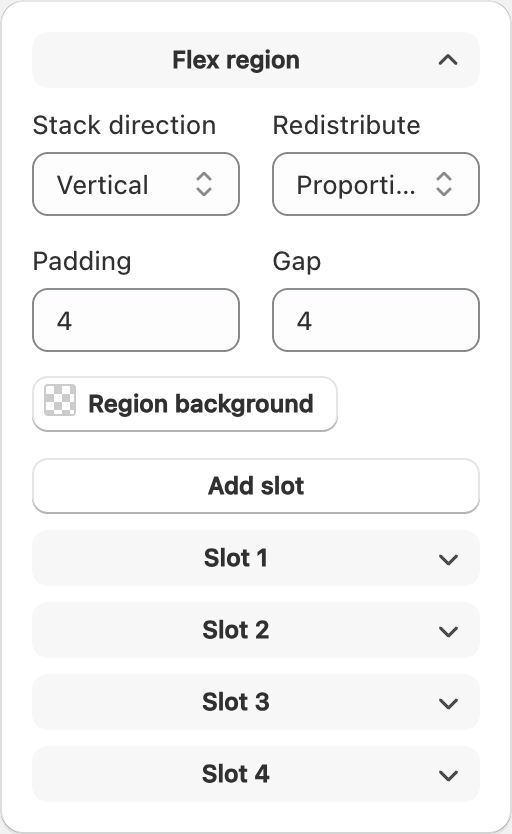
A Flex region is a container you place on the label. Objects inside it (text, barcodes, images, or QR codes) share that space and adjust so content fits without overflowing the region’s bounds.
Shapes cannot be bound into flex slots. Use text, barcode, image, or QR code content inside a flex region.
When to use one
Use a flex region when:
- Product titles vary a lot in length
- You want a price and description to share a fixed block
- You need content to stay inside a printed “window” on the label
Add a flex region
- Open the editor.
- Add a Flex region object.
- Size and position the region where the adjustable content should live.
- Add or bind supported objects into the region’s slots as the editor allows.
- Preview with several variants to confirm long and short text both look right.
Tips
- Keep the region large enough for your longest expected title at a readable size.
- Avoid nesting more complexity than you need — start with one region and a few fields.
- Print a sample after large catalog changes.
Related articles
Updated on: 09/10/2026
Thank you!