Showing product data on labels
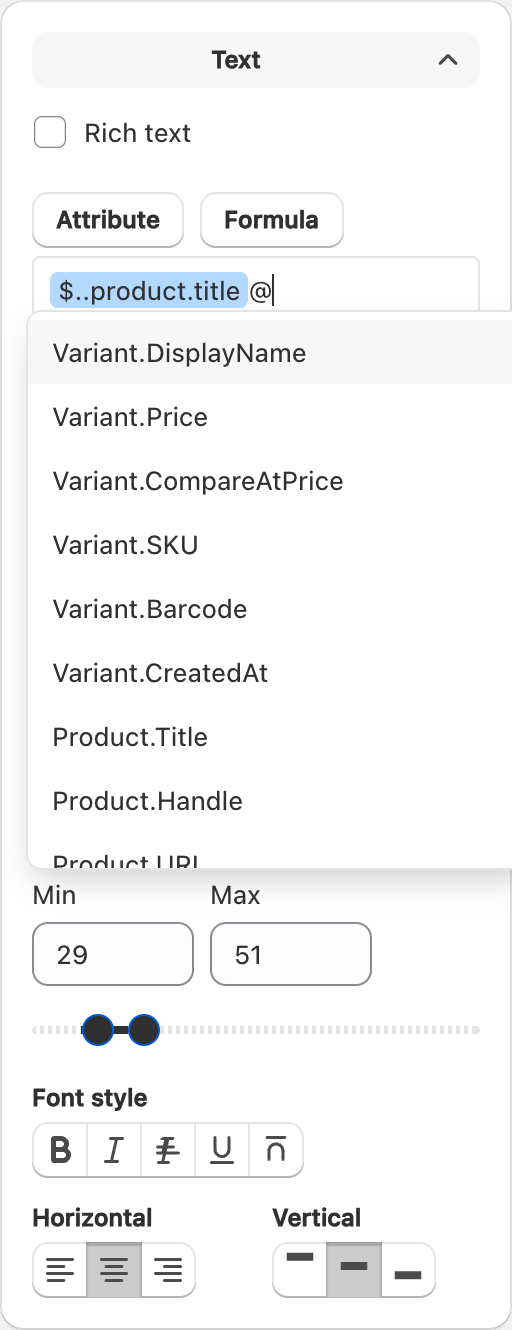
Insert a product field
- Select a text, barcode, QR code, or image object that supports data.
- Open the field / attribute controls in the sidebar (often labeled Attribute or similar).
- Choose a field such as title, price, SKU, barcode, or a metafield.
- Apply the selection so the canvas shows a token or resolved preview.
Preview with a real variant
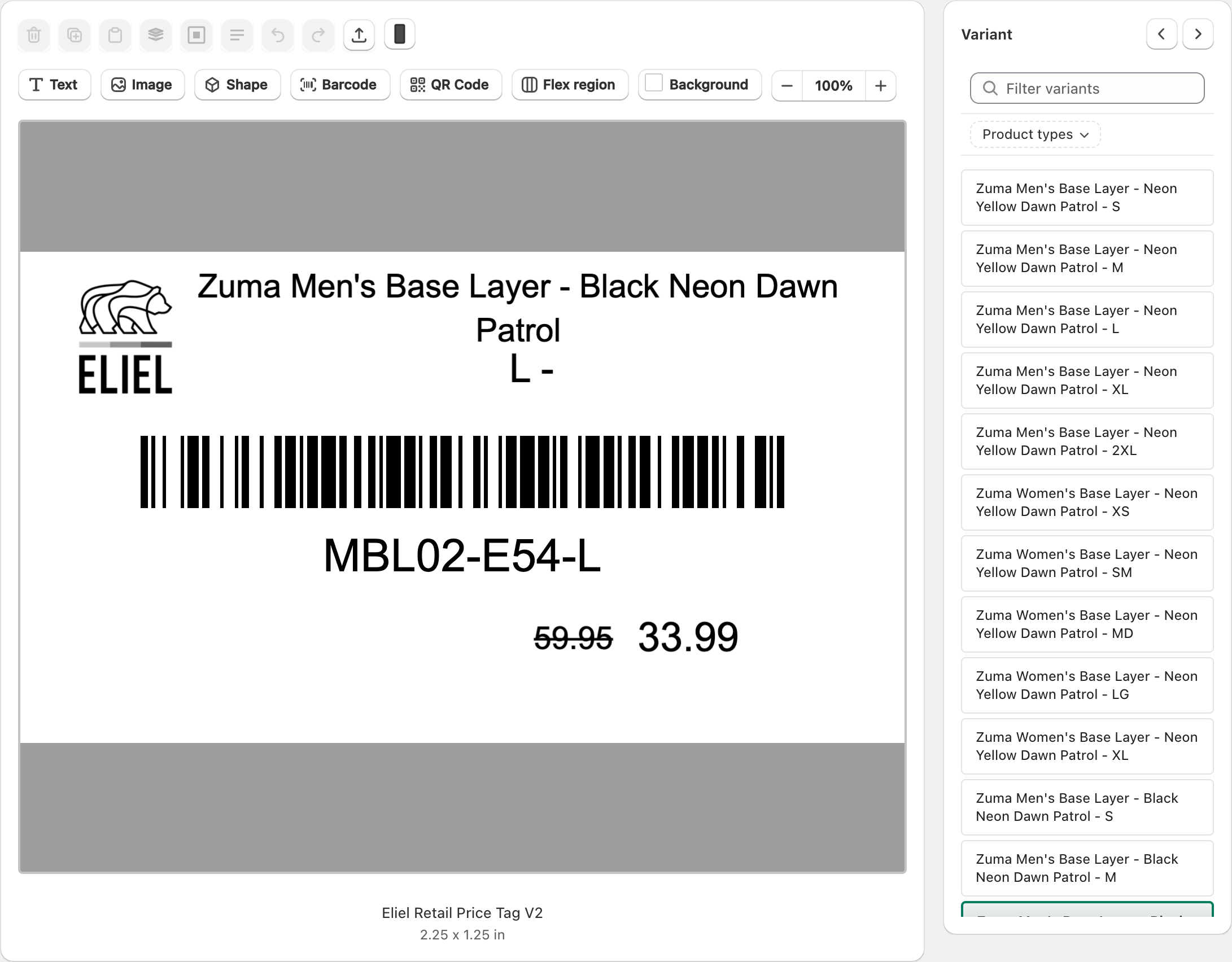
Use the editor’s variant selector (when shown) to preview how the label looks for different products. This helps catch empty fields, long titles, and barcode issues before you print.
Common fields
Typical fields merchants use:
- Product or variant title
- Price
- SKU
- Barcode
- Variant options (size, color, and so on)
- Metafields your shop already stores on products or variants
Exact field lists depend on your store’s data and the object type you are editing.
Empty values
If a field has no value for a product, that part of the label can print blank. That is normal when the data is missing. Fix the product in Shopify, or adjust the design so optional fields are not required for scanning or compliance.
Related articles
Updated on: 09/10/2026
Thank you!