Printing labels for your products
Open Print labels
Open Print labels from the navigation, from a saved design, or from Label Wizard actions on a product or variant page.
You will see your selected design summary and a Products table.
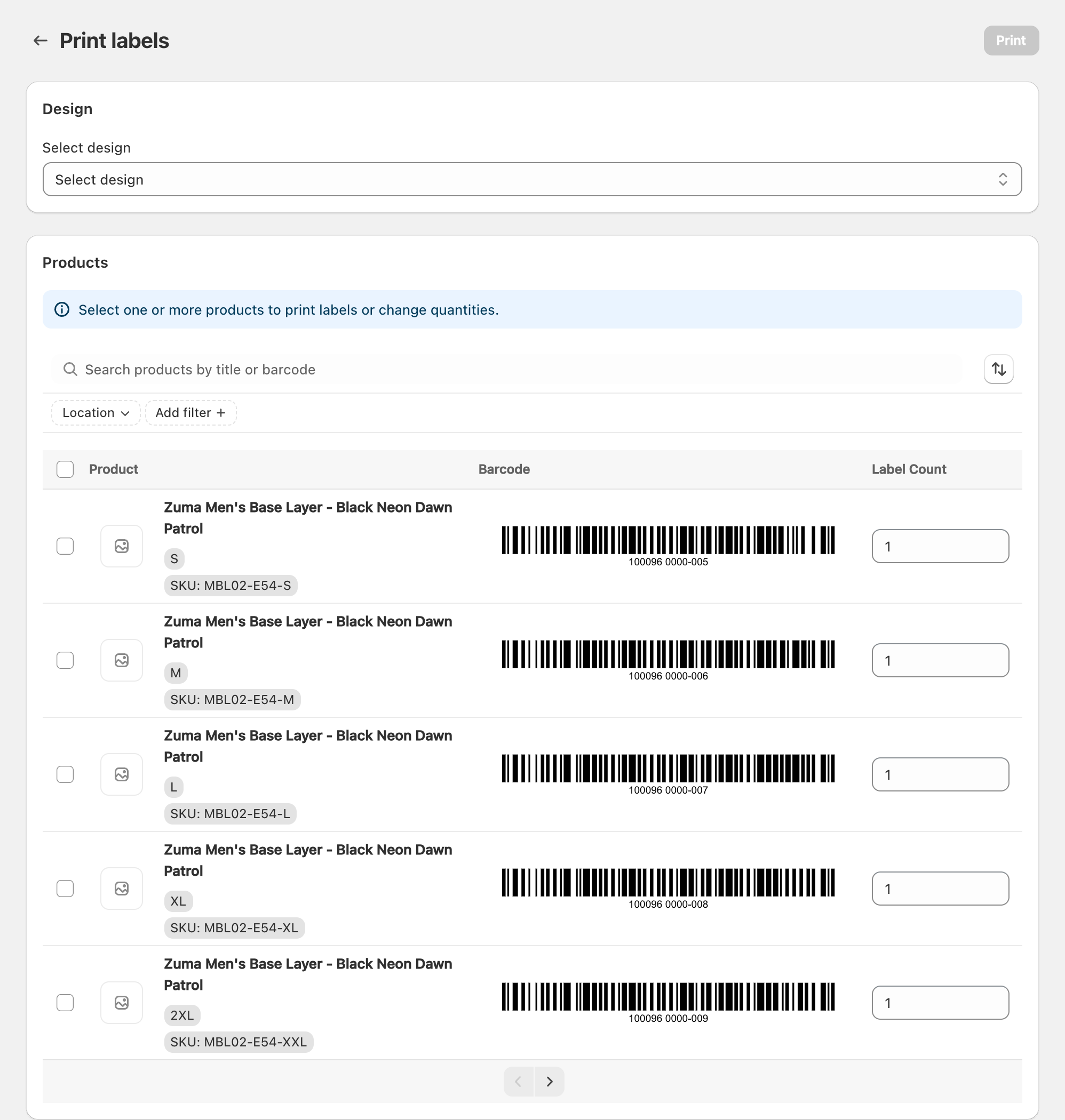
Search and filters
- Search products by title or barcode.
- Filter by Location when you need inventory for a specific location.
- Use product type or other filters when shown.
- Clear filters with Clear all when you want the full list again.
If you arrived from a product or variant action, a product/variant chip may already narrow the list. Clear that chip to return to the wider catalog while keeping your design selected.
Select products
- Tick the rows you want to print.
- Or use Select all for every product in the current filter (see Printing labels for every product at once).
- Adjust quantities in the quantity column or with Set Quantity.
- Choose Print from the page header or the bulk actions next to the selection.
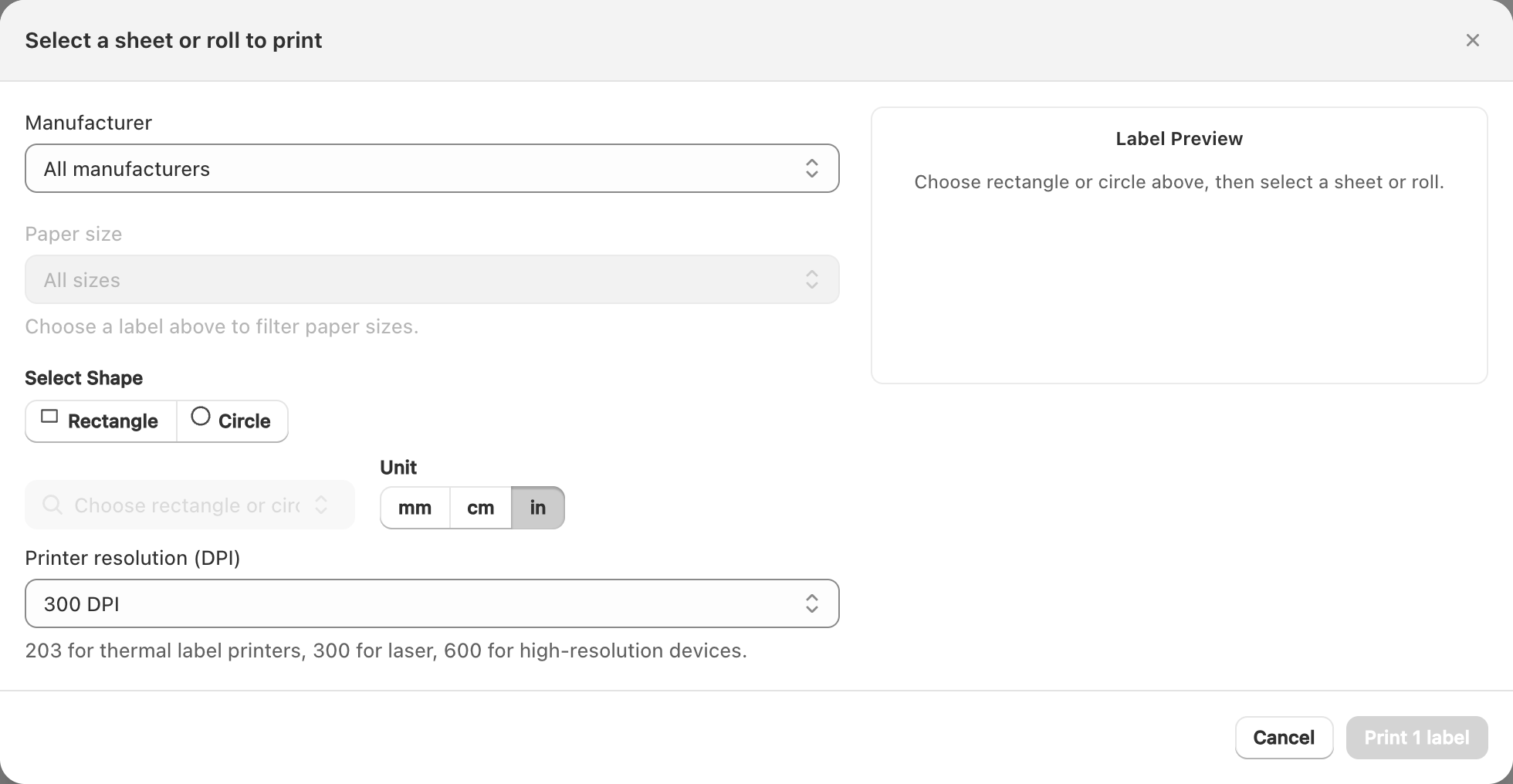
- In the print dialog, choose Manufacturer, Paper size, and Sheet or roll as needed.
- Confirm Print resolution (DPI) if shown.
- Review the Label Preview, then print.
Credits
Each label printed uses plan credits or metered usage. See Understanding plans and label credits.
Related articles
Updated on: 10/10/2026
Thank you!