Formulas and advanced fields
When to use a formula
Use a formula when a single field is not enough, for example:
- Combining title and option values into one line
- Formatting a price or other number
- Pulling a value through a product reference
- Showing a value from a related group of variants
Start with simple field insertion first. See Showing product data on labels. Switch to Formula mode in the token editor when you need more control.
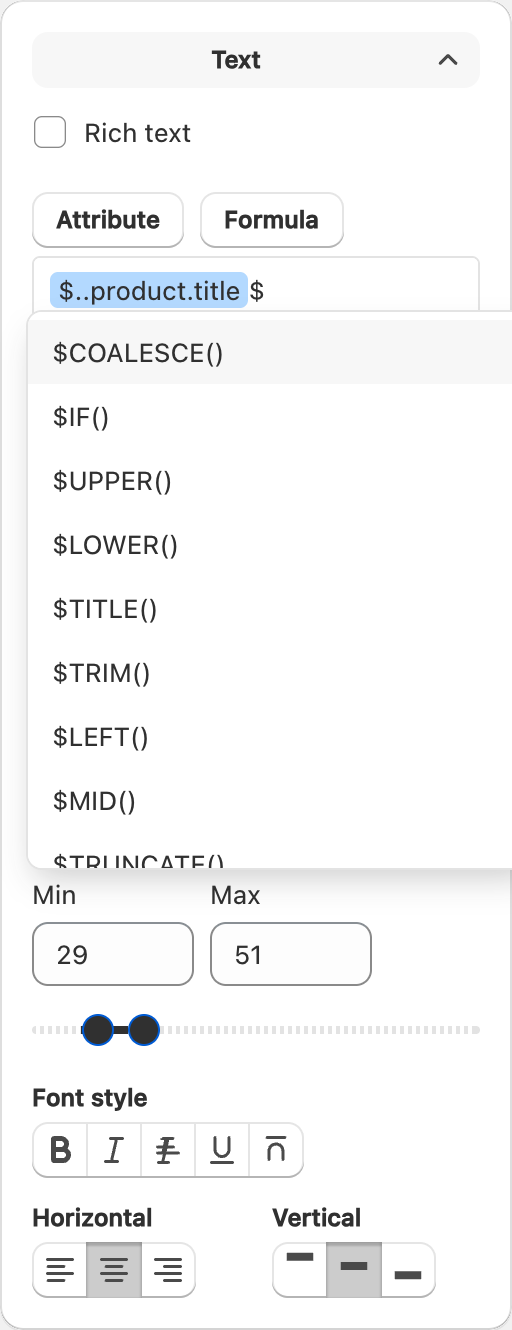
Editing a formula
- Select the object that should show the value.
- Open the field editor and switch to Formula when available.
- Build the expression with the helpers and fields offered in the UI.
- Apply the change and preview with a real variant.
Errors vs empty data
Label Wizard treats these differently:
- Empty data — the product simply has no value; the label may show a blank. That can be correct.
- Broken formula — the expression itself is invalid. The editor should show an error you can fix. Do not ignore formula errors and assume the print will look fine.
If something looks wrong, fix the formula or the product data, then preview again before printing.
Related product and group data
Advanced designs can reference related products or values across variants (for example matching variants in a group). Keep these expressions as simple as you can, and always preview several products.
Related articles
Updated on: 09/10/2026
Thank you!