Print on a partly used label sheet
Before you start
- A label sheet with some positions already used, and the same sheet chosen for your design.
- Products selected on Print labels. See Print barcode labels for your products and variants.
Skip the used positions
- On Print labels, choose Print N labels. The Select a sheet or roll to print window opens.
- Check that Sheet or roll shows the sheet you are loading.
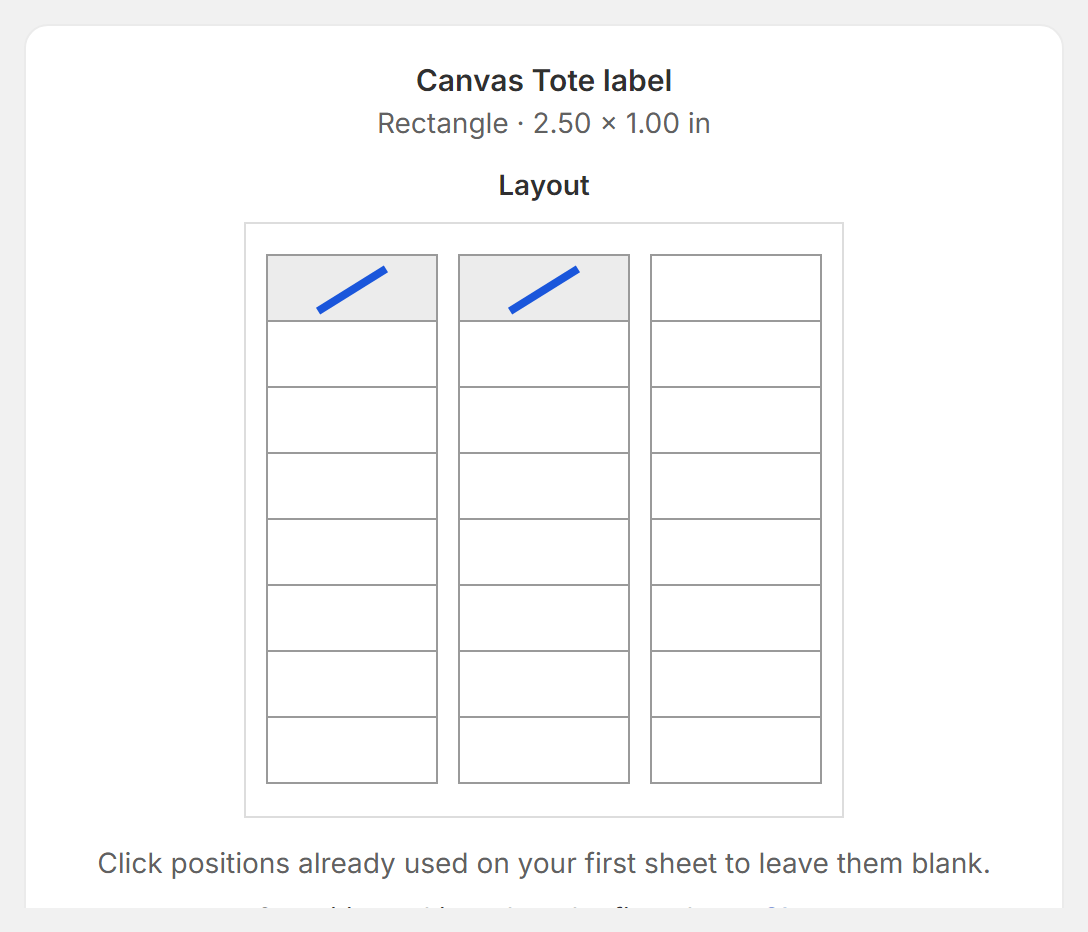
- In the Layout preview, click each position that is already used on your sheet.
- Check the counter under the preview, for example 2 positions skipped on the first sheet.
- Load the sheet into your printer the same way up as last time.
- Choose Print N labels.
What happens
The skipped positions stay blank on the PDF, and your labels fill the free positions in order. Skipping applies to the first sheet of the run only.
Skipped positions are not labels, so they do not count toward your plan. The button keeps showing the number of labels you print.
Undo a skip
Choose Clear next to the counter. Every position is free again.
If something goes wrong
- Labels land on used positions: check the counter before you print, and that the sheet faces the same way as in your last run.
- Labels are shifted on the sheet: set scale to 100% and margins to None in the print dialog. See Fix common printing problems.
- Your sheet is not in the list: its size does not match the design. See Fix common printing problems.
Related articles
- Which label stock and printer do I need?
- Find your label sheet or roll (Avery, Online Labels, Dymo, Uline)
- Fix common printing problems
Updated on: 05/11/2026
Thank you!