Choosing your label stock: sheets, rolls and continuous feed
Sheets (laser / inkjet)
Sheet stock is a page of peel-off labels (for example Avery or Online Labels). You print a full page (or part of a page) on a standard laser or inkjet printer.
Best when:
- You already buy brand-name sheets
- You print small batches on an office printer
- You need exact alignment to a published template
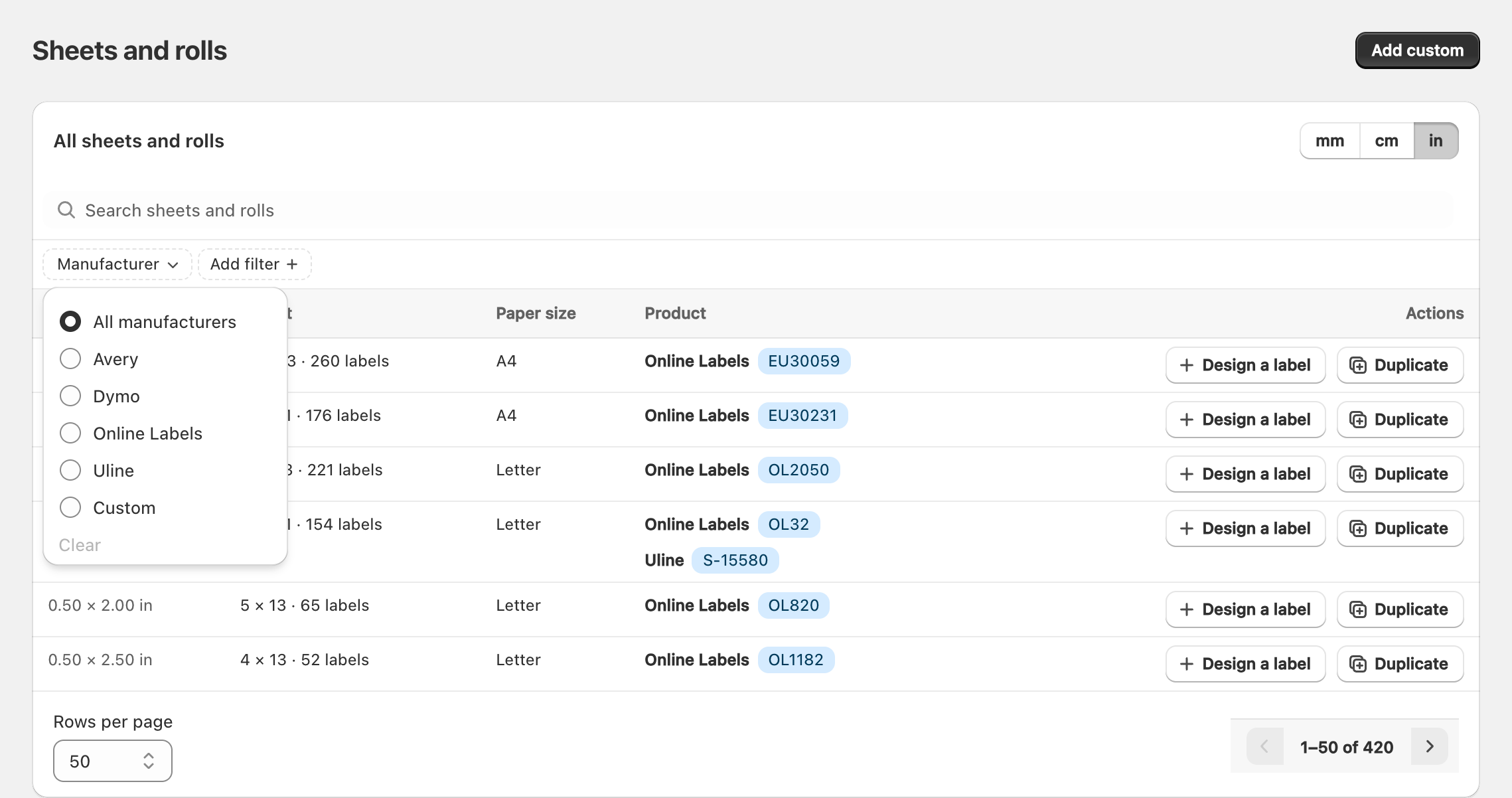
Use Sheets and rolls in Label Wizard to find a matching template, or create a custom sheet template.
Rolls (thermal)
Roll labels feed through a thermal label printer (Zebra, Rollo, DYMO-style devices, and similar). Labels usually come one-wide on the roll.
Best when:
- You print shipping or warehouse labels often
- You want one label at a time without cutting sheets
In Print labels, look for roll and continuous-feed options under manufacturers such as Continuous Feed.
Continuous feed
Continuous feed stock is a long strip without fixed page breaks. Label Wizard treats continuous designs differently from multi-label sheets so your print layout matches the printer.
Continuous-feed rolls often print best at 203 DPI on thermal printers. See Getting the best print quality.
Plain paper
Plain paper options let you design and print without a branded label sheet — useful for drafts or custom cut sizes. Alignment still depends on your printer margins and scale settings.
How to pick stock in Label Wizard
- Open Sheets and rolls or start Design a label → Start from a sheet or roll.
- Filter by size, shape, or search (for example
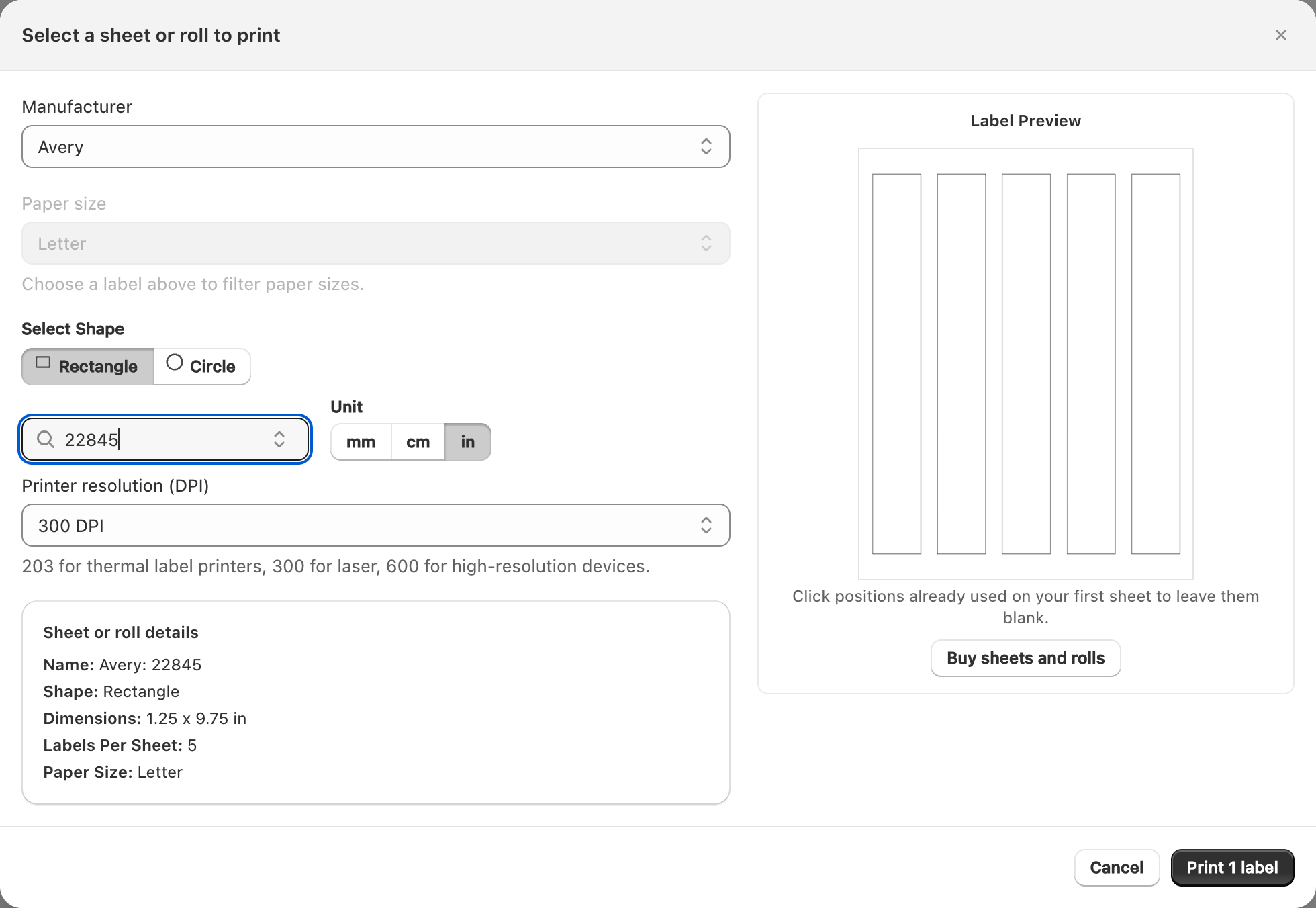
Avery 5160or4x6). - When printing, choose the same Sheet or roll in the print dialog so the preview matches your physical stock.
Related articles
- Finding your label sheet in Sheets & Rolls
- Printing on thermal and continuous-feed printers
- Getting the best print quality
Updated on: 09/10/2026
Thank you!