Printing labels for every product at once
Select all products
- Open Print labels and set any filters you need (location, search, product type).
- Select at least one row, then choose Select all for all products matching the current filters (not only the current page).
- The bulk Print action may read Print All.
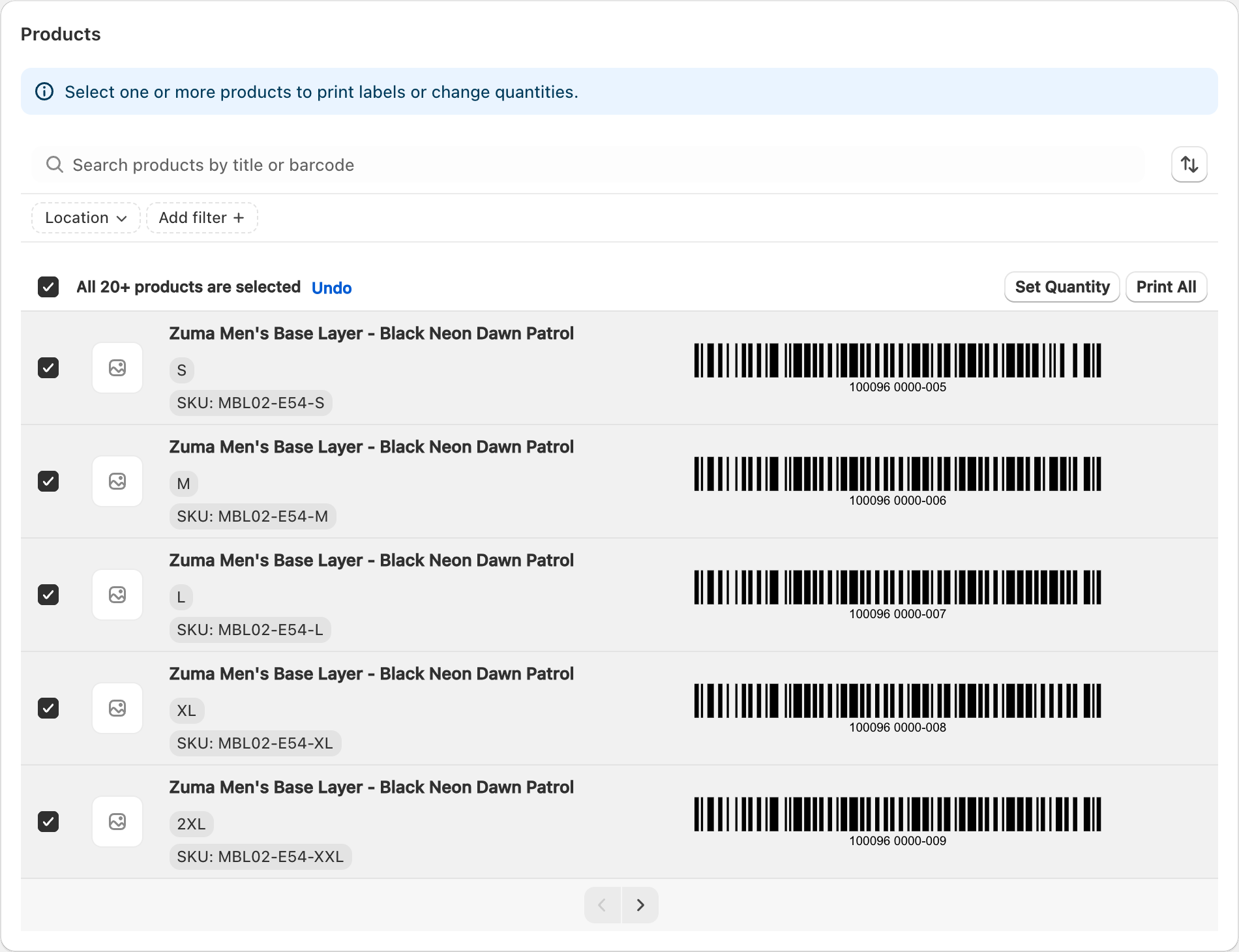
Print All quantity step
When Select all is active (and you are not printing from an order), Print may ask for a quantity to apply across the filtered set before opening the sheet/roll picker. Confirm carefully — this can generate a large number of labels.
Order mode skips that “one quantity for everything” step because each line already has an ordered quantity.
Credits and large runs
Credits and usage are based on total labels printed. A full-catalog run can use many credits at once. Check your remaining credits or Pay As You Go usage before confirming. See Understanding plans and label credits.
Tips
- Narrow with filters first if you only need one product type or location.
- Spot-check quantities on a few rows before printing everything.
- For a single product’s variants, prefer launching Print from that product instead of Select all.
Related articles
Updated on: 09/10/2026
Thank you!