Print labels from a product page
Before you start
- A saved design. See Create a label design.
Print from a product or variant page
- In your Shopify admin, open Products and open the product. For one variant, open that variant's page.
- Choose More actions, then Print labels.
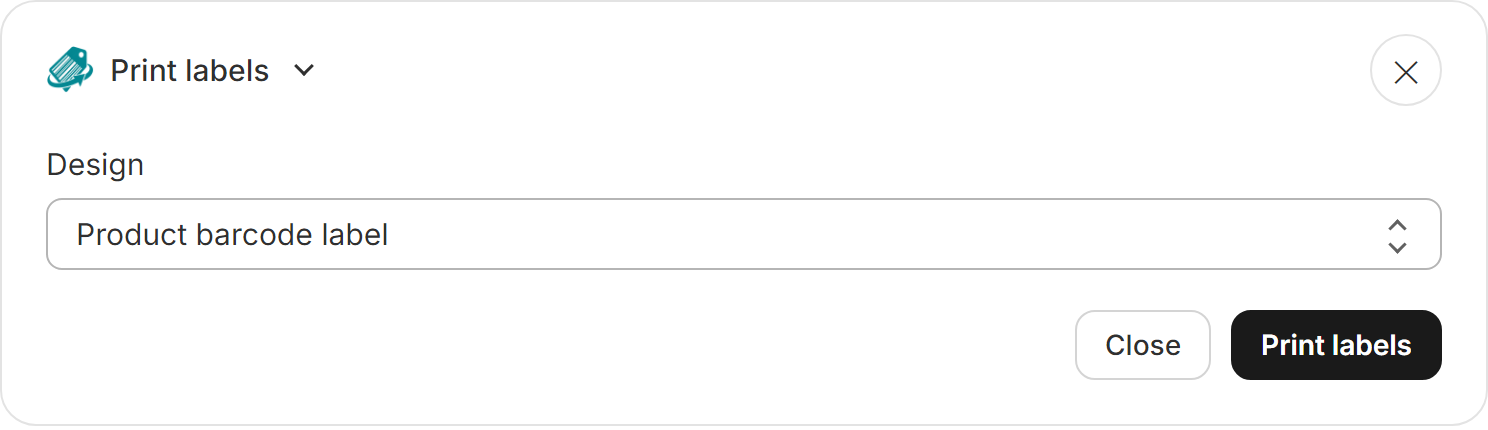
- In Print labels, check the Design. It starts at the design you used last.
- Choose Print labels, then set quantities, choose your sheet or roll and print, as for any print. See Print barcode labels for your products and variants.
Other Label Wizard items on the page
- More actions also has Edit label design.
- + Block in the page's Blocks section offers View design (product) on a product page and View design on a variant page.
More actions also lists items from other apps, such as Create barcodes and Print barcode labels (Shopify's Retail Barcode Labels) and Assign GTIN/EAN/UPC (GS1 Assistant). The order of the items can change, so look for the name.
If something goes wrong
- Print labels is not in More actions: scroll the menu; the order of the items changes. If it is missing, open Label Wizard from Apps and print from there.
- Edit label design keeps loading: close it and open the design from My designs in Label Wizard instead.
- The design you want is not listed: only saved designs show. Save it in Label Wizard first.
Related articles
Updated on: 05/11/2026
Thank you!