Setting label quantities
Edit a single quantity
In the Products table, change the quantity field on a row. That value is how many labels print for that product or variant in the next run.
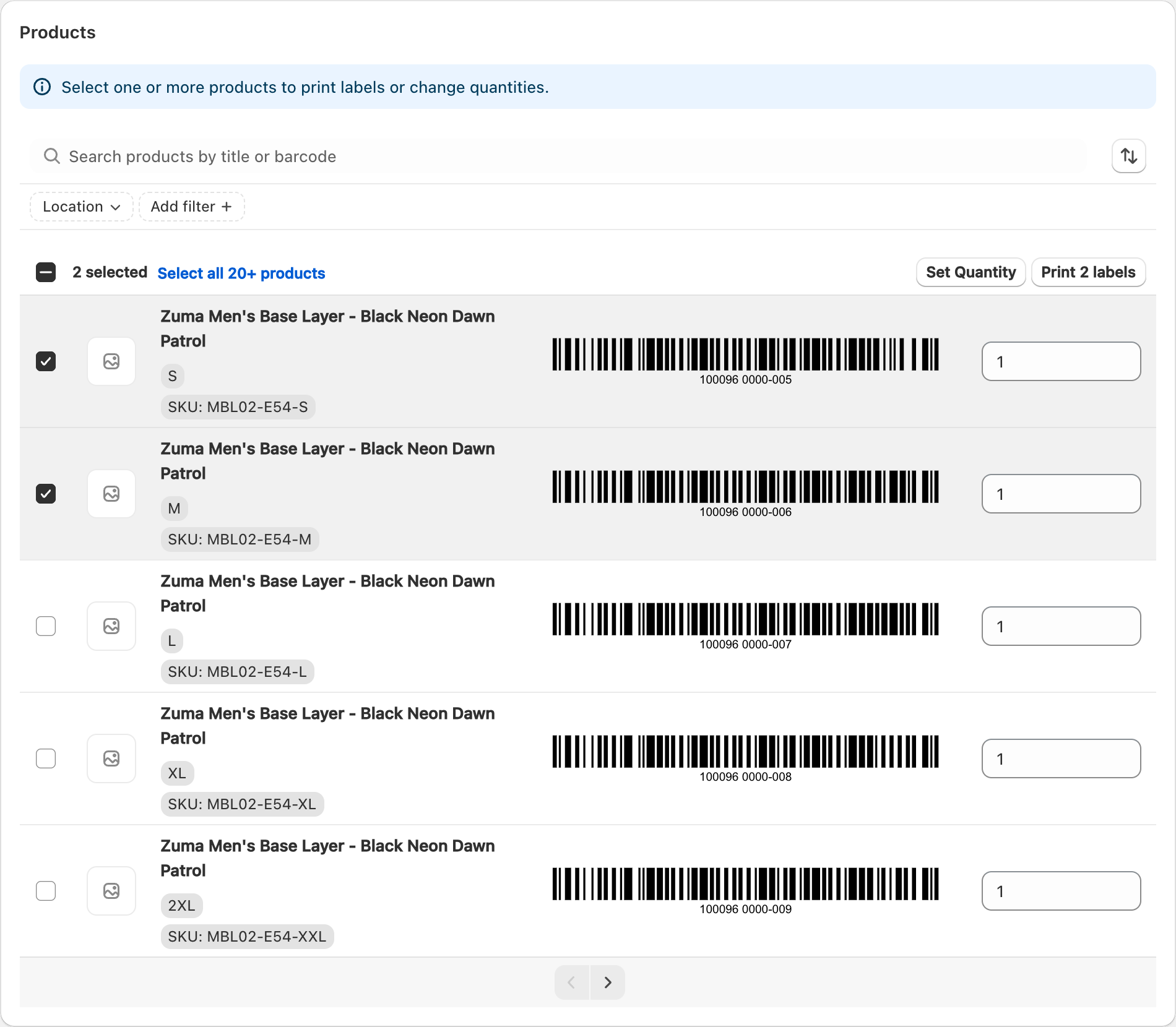
Set Quantity for many products
- Select one or more rows (or Select all).
- Choose Set Quantity.
- Enter the quantity.
- Apply to the selected products, or use the options offered for filtered/all products when Select all is active.
Default print quantity (Settings)
In Settings, Default print quantity controls the starting quantity when you open Print labels:
- 1 label per product — starts at 1
- Inventory on hand — starts from inventory for the selected location (the app may cap the suggested default per SKU; you can still type a higher number)
Help text in Settings: you can change quantities on Print labels at any time.

Inventory and locations
When quantities follow inventory, pick the right Location filter first. Quantities match inventory for that location. Order-based printing uses ordered line quantities instead — see Printing labels for an order.
Related articles
- Printing labels for your products
- Printing labels for every product at once
- Settings: language, units, default manufacturer and preferences
Updated on: 10/10/2026
Thank you!