Rename, copy or delete a saved design
Before you start
- At least one saved design. See Create a label design.
Find your designs
In the app's menu, choose My designs. Each card shows the design's name, its size, and Print labels and Edit buttons. If you have many designs, the page controls at the bottom show where you are, for example "1 of 5".
Rename a design
- On the design's card, open the menu.
- Choose Rename design.
- Type the new Design name and choose Save.
Copy a design
- On the design's card, open the menu.
- Choose Duplicate design.
- Rename the copy, then choose Edit to change it.
Use a copy to try a new layout or a second label size without changing the design you print today.
Delete a design
- On the design's card, open the menu.
- Choose Delete design.
- In Delete design?, choose Delete.
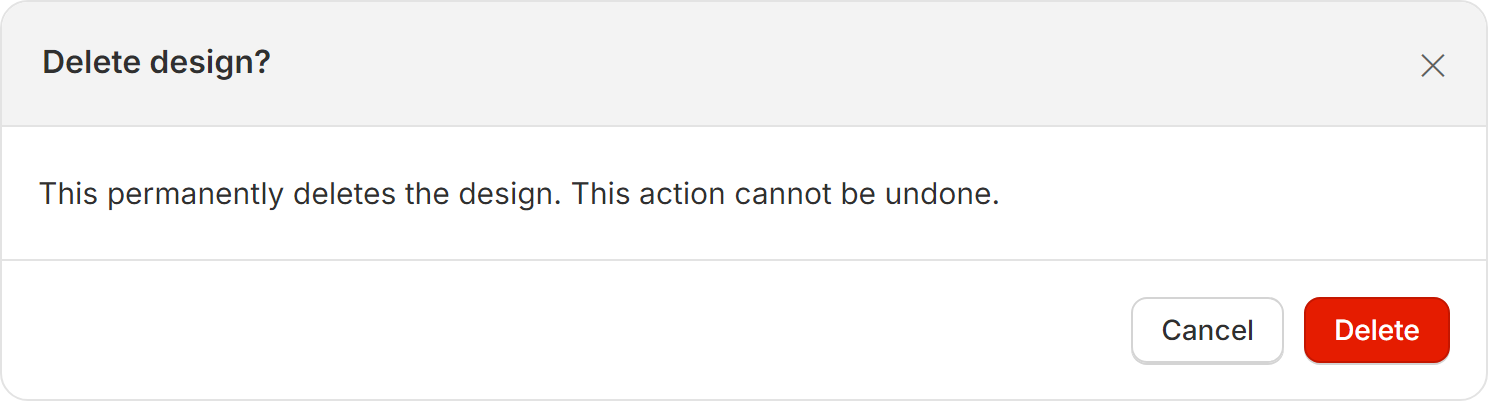
Deleting cannot be undone. Your products and their barcodes in Shopify do not change.
If something goes wrong
- You have several designs with the same name and a number, such as "-(3)": each Use this design click in the Design gallery makes a new copy. Delete the extras.
- You are not sure which copy you print with: rename them clearly, for example by label size or stock part number.
Related articles
Updated on: 05/11/2026
Thank you!