Label Wizard on product and variant pages
Add the Label Wizard block
- Open a product or variant page in Shopify admin.
- In the Blocks section, choose Add block.
- Add Label Wizard.
There is a product block and a variant block. Use the one that matches the page you are on.
What the block shows
- If nothing has been printed yet for a multi-variant product, the product block may stay hidden until at least one variant has been printed.
- For a single-variant product with no print yet, you can still pick a design and use Edit / Print.
- After you print, a preview image of the last printed label appears.
Product block carousel
On a product with several printed variants, the block can show previous/next controls (for example Ice · 1 of 3). Only variants that have been printed appear in the carousel. Use the arrows to move between them.
Choose a design
The Design dropdown lists your saved designs. Edit and Print use the design you select. If you pick a different design than the one in the preview image, the preview hides until you select the last-printed design again (or print with the new design).
Edit and Print
- Edit opens the design in Label Wizard’s editor.
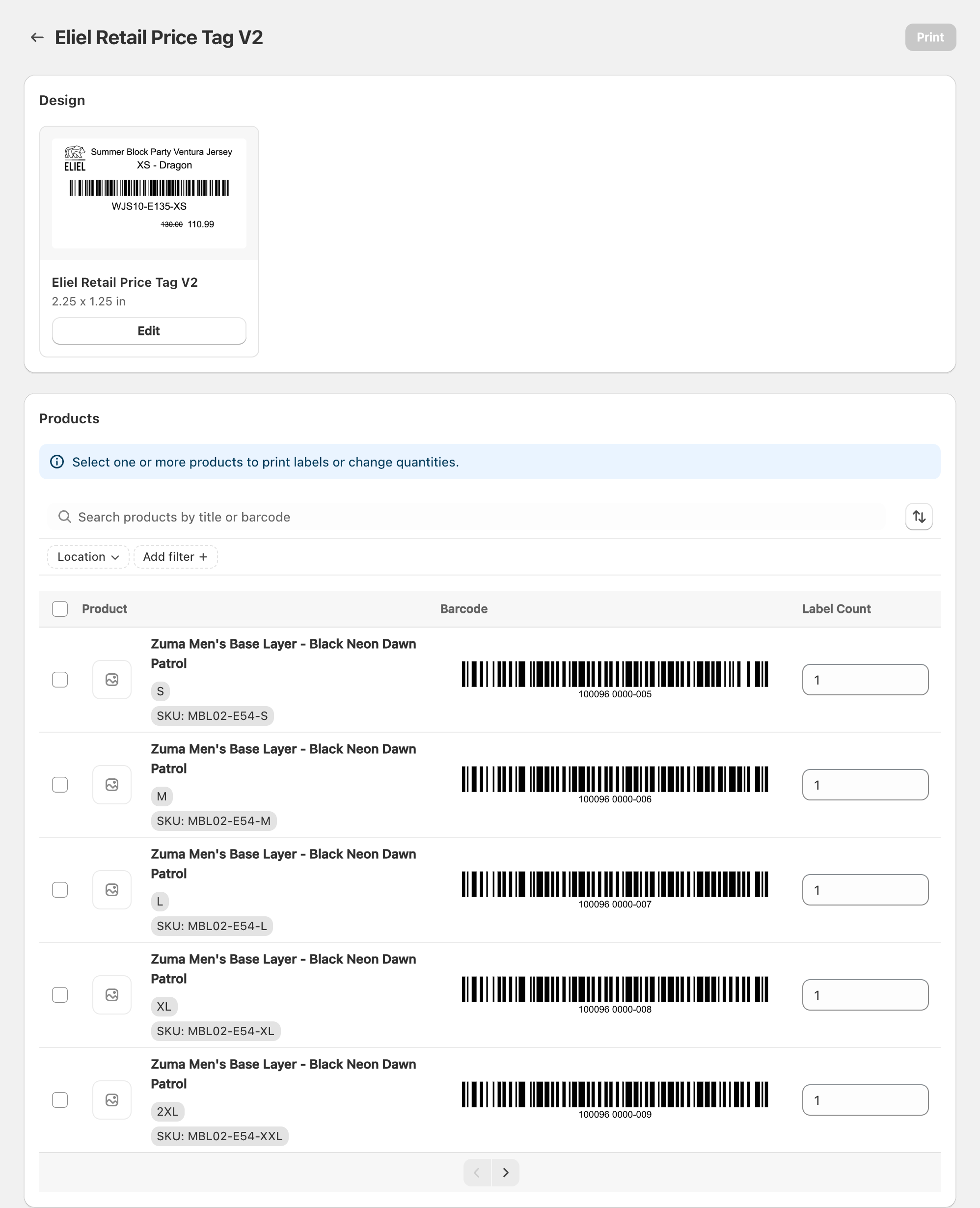
- Print opens Print labels filtered to that product or variant.
More actions
Label Wizard also provides admin actions (for example print or edit flows) from product and variant More actions menus. Use those when you want to jump straight into printing or editing without the block.
Related articles
- Printing labels for your products
- Creating a new label design
- Troubleshooting common printing problems
Updated on: 09/10/2026
Thank you!