Settings: language, units, default manufacturer and preferences
Open Settings
Choose Settings in Label Wizard navigation.
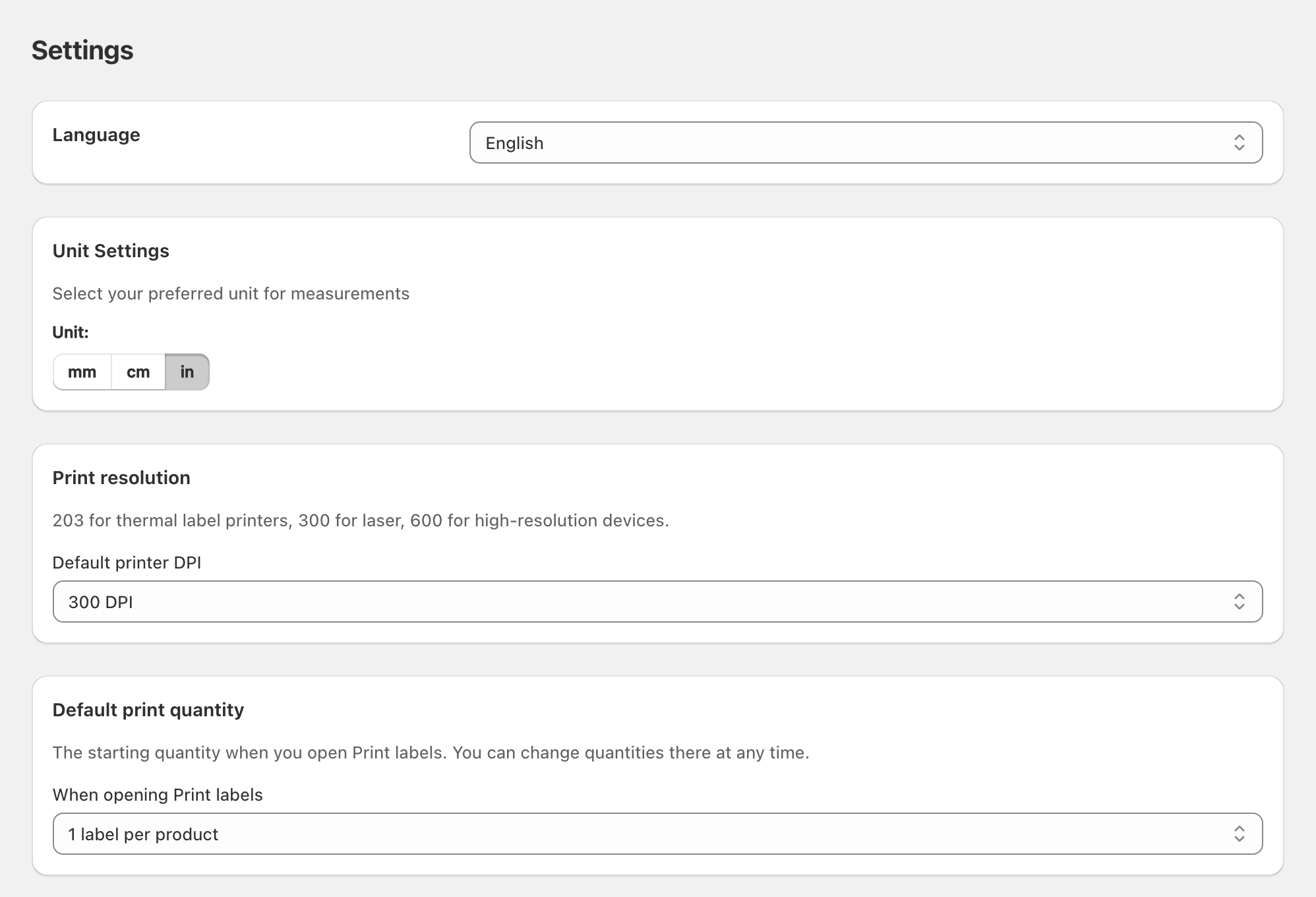
Language
Use Language / Select language to change the app UI language for your session. Available languages depend on what Label Wizard ships.
Unit settings
Unit Settings control whether sizes are shown in mm, cm, or in. This affects design and template dimensions in the UI. Pick the unit you use when buying stock.
Print resolution
Print resolution sets the default DPI for printing: 203, 300, or 600. See Getting the best print quality.
Default print quantity
Default print quantity controls the starting quantity when you open Print labels:
- 1 label per product
- Inventory on hand
You can always change quantities on the Print labels page. See Setting label quantities.
Account and billing
Settings also show account information such as Remaining Credits or cycle usage, plus Change plan / billing links when applicable. See Understanding plans and label credits.
Related articles
Updated on: 09/10/2026
Thank you!