Creating a custom sheet or roll template
When you need a custom template
Create a custom template when your physical stock is not listed under Sheets and rolls, or when you need different margins or label counts than the catalog provides.
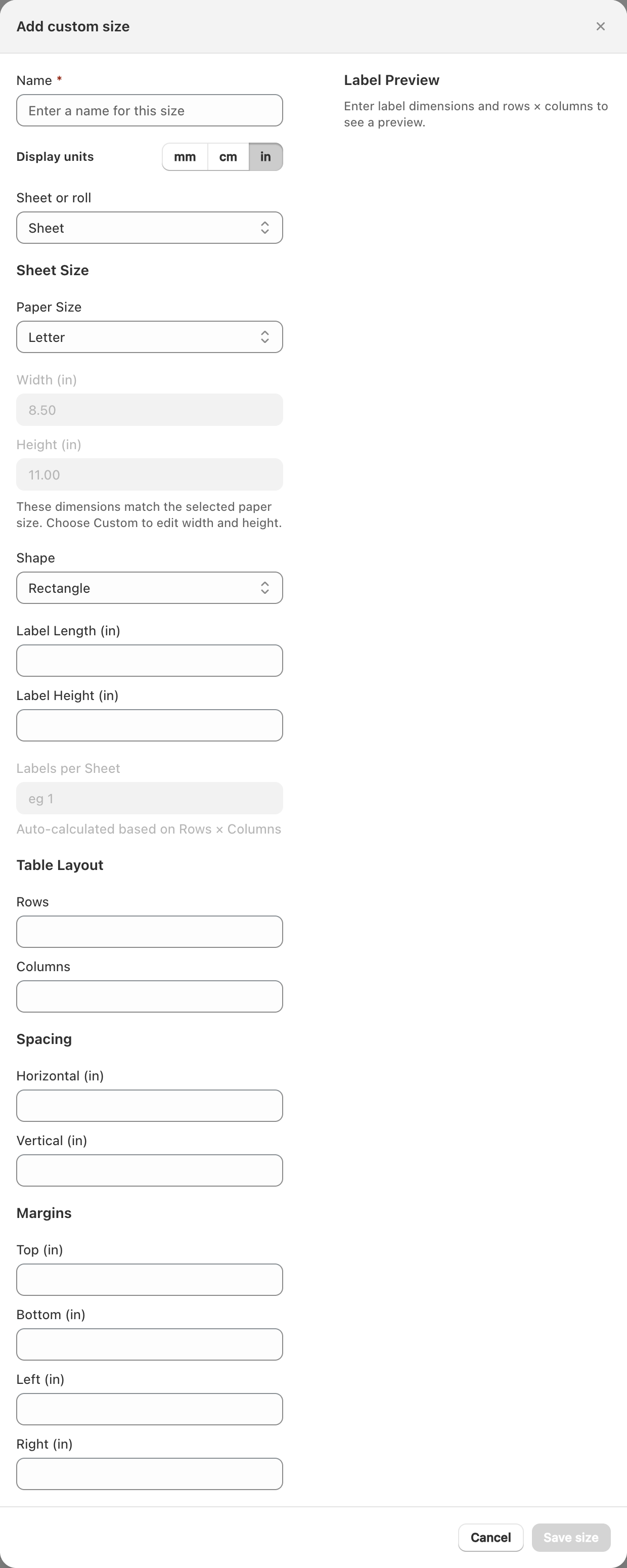
Add a custom template
- Open Sheets and rolls.
- Choose Add custom.
- Enter a clear name.
- Set shape (rectangle or circle) and label dimensions.
- Choose stock type (sheet vs continuous) as the form allows.
- For sheets, set:
- Rows and columns (labels per sheet)
- Horizontal and vertical spacing
- Page/sheet size
- Margins (top, bottom, left, right)
- Save the template.
Preview and validation
The form may auto-calculate labels per sheet from rows and columns. Fix any validation messages (for example layout that does not fit the page) before saving.
Duplicate and delete
- Duplicate an existing template when you only need small changes.
- Delete custom templates you no longer use. Confirm the delete dialog — this does not delete your saved label designs, but those designs may still reference the old size.
Related articles
Updated on: 09/10/2026
Thank you!